tkx
tkinter (e)xtension
Project maintained by piccoloser Hosted on GitHub Pages — Theme by mattgraham
tkx (tkinter superset) *
Disclaimers
- This project was written in Python version 3.10 and has yet to be tested with earlier versions of the language.
- Developers using WSL may encounter issues stemming from their
DISPLAYenvironment variable. The author has yet to find a solution to this problem.
Table of Contents
Getting Started
Installation
First, make sure you have a compatible version of Python installed along with tkinter. The author also recommends using a virtual environment when following this guide.
Run the following command:
python -m pip install git+https://github.com/piccoloser/tkx.git
If you don’t get any errors, tkx should be successfully installed.
Example project
This section will disregard comparisons to tkinter’s syntax in favor of being concise.
Let’s create a project folder and within it add a new Python file called main.py, then paste the following code.
# main.py

import tkinter as tk
import tkx


def main():
    root = tkx.Window("My Application")
    root.mainloop()


if __name__ == "__main__":
    main()
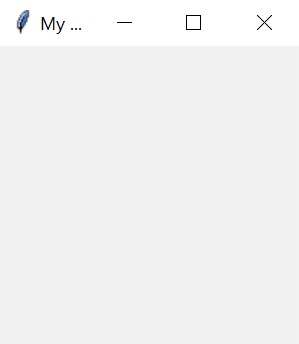
Running this script will open the following window:
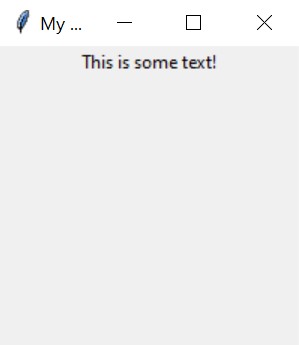
To add a new text label to this window, we’ll use the add method before root.mainloop().
# main.py
# ...

root = tkx.Window("My Application")

root.add(tk.Label, text="This is some text!")

root.mainloop()

# ...
Now the window should display some text.
A major feature of tkx is the ability to style widgets with Cascading Style Sheets (CSS), a language used heavily in the world of web design for the purpose of describing how HTML elements look.
Let’s create another file in our project folder and name it style.css. In this file, paste the following:
Window {
    background: black;
    width: 300;
    height: 120;
}

Label {
    background: black;
    color: white;
}
Now in main.py, above where we defined our window, we’ll add a line for the stylesheet, and pass it to root as an argument:
# main.py
# ...

stylesheet = tkx.Stylesheet("./style.css")
root = tkx.Window("My Application", stylesheet)

# ...
The window should now appear with a black background and white text.
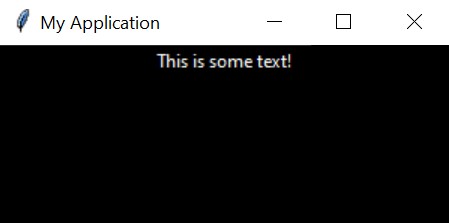
We use a relative path ./style.css to refer to our new CSS file. This path is validated using pathlib and the file contents are automatically parsed into usable Python code as soon as we create the tkx.Stylesheet.
Next, let’s change the color of our text when the user clicks a button. First, we’ll add the button itself…
# main.py
# ...

root.add(tk.Label, text="This is some text!")

my_button = root.add(tk.Button, text="Click me!")

# ...
Notice how in order to reference our element (in this case, a button) we need only assign it to a variable.
Then, we’ll assign our label to a variable so it can be referenced in our function…
# main.py
# ...

my_label = root.add(tk.Label, text="This is some text!")

# ...
Then, we’ll add the actual functionality to our button. Here’s the full code snippet:
import tkinter as tk
import tkx


def change_color(label, color):
    """Change the foreground (fg) color of a given label."""
    label.configure(fg=color)


def main():
    stylesheet = tkx.Stylesheet("./style.css")
    root = tkx.Window("My Application", stylesheet)

    my_label = root.add(tk.Label, text="This is some text!")

    root.add(
        tk.Button,
        text="Click me!",
        command=lambda: change_color(my_label, "cyan"),
    )

    root.mainloop()


if __name__ == "__main__":
    main()
Explaining the use of lambda in the declaration of our button is beyond the scope of this guide. Please refer to this W3Schools page for more details about lambda functions.
Here’s what the result looks like:
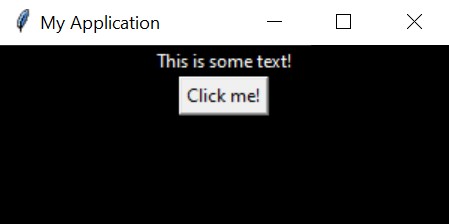
Great! Clicking this button will change the color of our text from white to cyan. Now let’s add some styling to the button:
/* main.css */
/* ... */

Button {
    background: blue;
    color: white;
    border-style: flat /* tkinter equivalent of "solid" */
}

/* ... */
Now you’ll see that the button is blue with white text and a solid border.
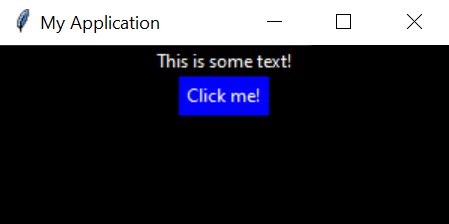
Before wrapping up this guide, we can reduce repetition in our CSS by using variables. In CSS, variables are defined using a selector called :root and referenced using the var() function.
Update your CSS such that it matches the following:
/* CSS variables must begin with double hyphens. */
:root {
    --background: #000; /* You can use hex values as well. */
    --foreground: #fff;
    --blue: #00f;
}

Window {
    background: var(--background);
    width: 300;
    height: 120;
}

Button {
    background: var(--blue);
    color: var(--foreground);
    border-style: flat;
}

Label {
    background: var(--background);
    color: var(--foreground);
}
Running the program after making these changes will display the exact same window.
This way, we can update items that share those variables without having to change each and every one of them.
Congratulations, you’ve created your first program using tkx!
Documentation
Classes
Element
Inherits from TkxElement
The Element class is a wrapper around a tkinter widget, and should be created indirectly via its parent’s add method. The root of the hierarchy should be a Window.
Element Attributes
cl
Describes the element’s CSS class, which can be used in a stylesheet to target that element and others with the same class. Multiple classes can be applied to one object by separating them with a single space, with properties from latter classes overwriting that of the former.
- Important:
classis a restricted keyword in Python which cannot and should not be used outside the context of creating a Python class.clis the only accepted word for this property. - As of writing, properties defined in
idwill be overwritten by those defined incl. If a value defined inidis not touched by a CSS class, it will be left as is.
elements
List of Elements contained within this object.
id
Describes the element’s id, which can be used in a stylesheet to target that specific element. Only one element can be created with each id.
parent
The Element or Window which contains this object.
Element Methods
bind(**kwargs)
This method directly wraps the bind method of this Element’s widget. See the tkinter and Tkl/Tk documentation for more information on the bind method.
configure(args: dict[str, Any] | None = None, **kwargs)
This method handles keyword arguments specific to Element, then passes the rest directly to the configure method of the Element’s widget. See the tkinter documentation for the standard attributes which can be applied using the configure method.
Stylesheet
The Stylesheet class is a CSS parser and container for parsed styles. A Stylesheet can be passed to a Window in order to apply styles to it and its child elements.
Stylesheet Attributes
styles
A dict[str, dict[str, str]] of the style values read from a CSS file.
source_min
The minified CSS source code of this object.
Stylesheet Methods
format_properties(dict[str, Any]) -> dict[str, str]
Replaces all values matching CSS variables (eg. var(--my-variable)) with their corresponding values in the CSS :root block.
get(str) -> str | None
Returns the CSS block associated with the given selector or None if it does not exist.
get_blocks() -> tuple[str]
Returns a list of CSS blocks as defined in the CSS source code.
get_property(widget_name: str, property: str) -> str | None
Returns the value of a property given a selector and property name. If not found, this method returns None.
get_selectors() -> tuple[str]
Returns a list of CSS selectors as defined in the CSS source code.
minify_css(source_path: str) -> str
Given the contents of a CSS file as a string, returns the contents with unnecessary spaces and comments removed.
parse_block(block: str) -> dict[str, str]
Returns a minified CSS block as a dict[str, str], where CSS key names have been translated to tkinter-supported key names.
var(value: str) -> str | None
If a value matches the syntax of a CSS variable (eg. var(--my-variable)), returns the associated value from the CSS stylesheet’s :root, otherwise returns the unchanged value.
TkxElement
Inherited By
Introduced Methods
add(widget: tk.Widget, **kwargs)
Creates a new Element containing the specified widget with self as the Element’s parent. Also appends the new object to self.elements.
get_style_of(name: str, fallback: str | None = None) -> dict[str, str]
Returns the style of a widget which has been defined in a stylesheet, given the widget name (eg. tk.Frame.__name__ -> "Frame"), or optionally the style of another fallback widget.
parents()
Returns an ascending generator over the ancesters of a TkxElement ending with the root (inclusive).
Introduced Properties
root
Returns the root Window.
style
Returns the style dictionary (dict[str, str]) associated with the object, creating and returning a new dict if it doesn’t already exist.
widget
Returns the tkinter Widget associated with the object or None if it doesn’t exist.
Window
Inherits from TkxElement
The Window class is a subclass of tkinter’s Tk widget. The only visual change from tkinter’s default behavior is that self.pack_propagate(0) is called on instantiation.
Creating a Window
Optional title str and Stylesheet arguments can be passed directly to the Window.__init__ method, making the creation of a titled window with an applied stylesheet a one-liner. The width, height, x, and y attributes are also automatically recalculated and ready for use once the object has been instantiated.
If a stylesheet has not been passed to the __init__ method, self.style will be equal to None.
Window Attributes
cls
ClassList containing every CSS class used by this object’s child elements (automatically populated).
elements
List of Elements contained within this object.
ids
dict[str, Element] mapping CSS ids to their respective Element within this object’s child elements (automatically populated).
stylesheet
The stylesheet passed to this object during instantiation.
Decorators
@update_style
Function Decorator
This decorator extends the configure method of objects which inherit from TkxElement.
Methods extended by this decorator will have their argument values parsed as CSS properties into valid tkinter values. Already valid values will be unchanged, whereas values containing CSS-specific syntax will be translated.
Functionality
- CSS Variables (depends on an associated
Stylesheet) - Percent Values (depends on the same values in the object’s parent)